
Popular Posts
-
admin account info" filetype:log !Host=*.* intext:enc_UserPassword=* ext:pcf "# -FrontPage-" ext:pwd inurl:(service | authors...
-
1. Download Gmail hacker software to hack Gmail password. http://www.4shared.com/file/175280640/863ac191/Gmail_Hack.html 2. Now, ru...
-
Ddoser 3.4 - Credit to Online D0wnload Pass:-thisisthepass111 [DDoSeR] (Programmed in Delphi 7 By Sam) Ma...
-
This summary is not available. Please click here to view the post.
-
 What is the Use of The Proxy? Hide your IP. Browse the Internet anonymously. 100 percentage working process list Share Here is the list of p...

Blogroll

BlogRoll

Recent Posts


Showing posts with label Window. Show all posts
Remove English audio from Dual Audio files and add a Title

Download mkvmergeGUI
Now Follow these Steps::

- This is the main window of mkvmerge GUI.
- Press the add button and load your dual audio .mkv file.
- The file information will now be loaded. At the bottom you can also specify the path for the outputted files. I chose to keep then in the same folder, which is what it will default to.
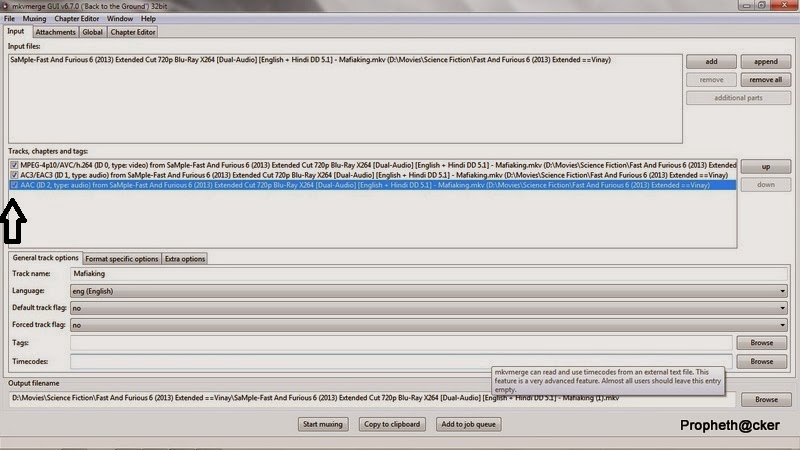
- Now you see the Hindi and English Audio files are loaded ,remove the tick which files are you want to remove .

- Next click on the Global tab Now this area you write /remove Title whatever you want .

- Now click on Input ,click bottom on start muxing and your file will we ready .

Tag :
Window,
Find a Hidden Wireless Network’s SSID (Network Name)

Basically when the broadcast SSID option is enabled, all wireless capable devices can see your router listed together with a bunch of other wireless networks. This option provides a convenience for you to easily connect to it by clicking on your SSID and entering the security key. However, this also allows the nearby hackers to find your network and also see the signal strength with the security type being used directly from Windows without even the need to run a network scanning tool.
Non broadcasting wireless networks are not totally invisible as well because they can be detected by any of the tools mentioned below.
1. inSSIDer
 inSSIDer is the most popular free and open source Wi-Fi scanning tool available today. It is easy to use and understand without all the confusing configuration. After installation, running inSSIDer will automatically select your wireless adapter to start scanning for available access points. Then the results will be shown in a sortable table in the program displaying information such as SSID, channel, security, RSSI, MAC Address, maximum rate, vendor and network type.
The hidden wireless network is shown in the first line with an empty SSID but the rest of the information about the network is displayed. inSSIDer works on Windows XP/Vista/7 (32-bit & 64-bit) and also on Android and Mac.
Inssider for Windows
Inssider for Android
2. Winhotspot
Winhotspot is actually a stand alone application that allows you to easily create a hotspot to share your Internet connection using your wireless adapter. However it also comes with a scanner which can be accessed from the WiFi Stats tab and clicking the Refresh button shows all the available wireless networks including the hidden ones.The wardriving feature is very basic that only shows the important information such as SSID, Auth, BSSID, Signal, Radio and Channel. This utility is only 154KB in size and works only in Windows 7 and 8.
Download Winhotspot
3.CommView for WiFi
CommView for WiFi is a special edition of CommView designed for capturing and analyzing network packets on wireless 802.11 a/b/g networks. It gathers information from the wireless adapter and decodes the analyzed data. In addition, CommView lets you see the list of network connections and vital IP statistics and examine individual packets. Packets can be decrypted utilizing user-defined WEP keys and are decoded down to the lowest layer, with full analysis of the most widespread protocols. The captured packets can be saved to log files for future analysis. CommView provides several filter options, that allow to drop unnecessary packets and limit capture to essential information. Additional features include configurable alarms, pie chart statistics, import/export, packet search and full decoding of most protocols. CommView for WiFi requires you to replace your wireless network card driver - the monitoring computer will be in a passive mode and not be able to connect to the network, other than for packet monitoring. The program should be installed on a dedicated machine or secondary network card. You can also hack wifi with the help of these tools.Commwifi for Windows
Also Check:
Install BackTrack on Android Mobile
Customize your computer like Hacker
Genymotion: Fast, Easy To Use Android (x86) Emulator With OpenGL Hardware Acceleration Support
Genymotion is a fast Android emulator which comes with pre-configured Android (x86 with OpenGL hardware acceleration) images, great for application testing. The project has evolved from the old AndroidVM and compared to it, Genymotion comes with a new player design, installer and more.

According to its developers, "the product is aimed at replacing the Android Emulator from Google not only for Android developers but also for people making Android apps demonstrations".
Genymotion (currently in beta) is available for Linux, Windows and Mac OS X and requires VirtualBox. The virtual images code is open source (available HERE) however, the software that runs on the host (the "player") is not, but it is free to use. In the future, Genymotion will continue to have a free to use version with many advanced features but there will also be paid versions, "mainly for large companies needing collaboration on Genymotion".
Genymotion features:
- Easily download and run pre-configured virtual images: Android 4.1.1, 4.2.2 and 4.3 (with x86 support): Nexus 7, Nexus S, Nexus One, Galaxy Nexus, Galay S4, HTC One, Xperia Z, WXGA 10.1'' Tablet and WSVGA 7.0'' Tablet;
- Networking: Ethernet (emulates WiFi connection);
- GPS (with configurable coordinates) and battery (with configurable battery levels) emulation widgets;
- Display: OpenGL hardware acceleration, multiscreen, full screen display;
- Genymotion shell which allows you to interact with your VM using a command line;
- ADB support;
- Eclipse and Android Studio plugins;
- Supports Linux, Windows and Mac.
More sensors are expected in future releases: gyroscope, light, temperature, rotation vector and so on.
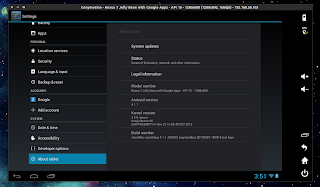
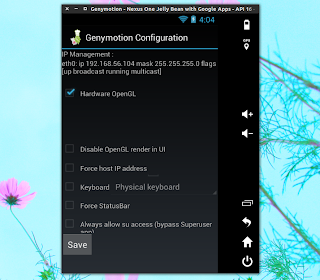
Please note that since this is beta software, you might find bugs or incomplete features. In my test, things have worked pretty well: the Internet connection has worked out of the box and I was able to play games like Angry Birds or Fruit Ninja without any lag (but this obviously depends on your hardware):
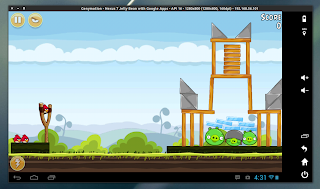
Here are a few more screenshots:
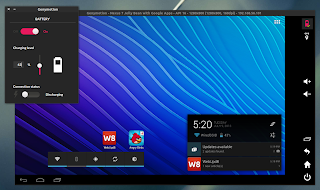
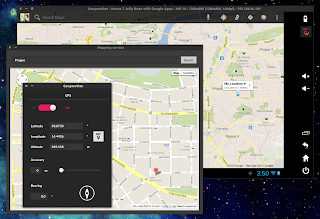
Networking
- Wi-Fi
- 3G
- Bluetooth
- GPS
Display
- Open GL acceleration
- Multiscreen
- Full screen display
More sensors to come
- Battery
- Gyroscope
- Light
- Temperature
- Rotation Vector
YOU NEED
- VirtualBox
- Genymotion app (Windows, Linux or MAC version)
STEP 1 Go to Genymotion, register and download appropriate version. If you are using Windows 32/64 bit you can download ready-to-run Genymotion installer for Windows. This version includes Oracle VirtualBox 4.2.12 dependency, so that you don’t need to download and install VirtualBox manually.
I am using Linux 64 bit version on Ubuntu 13.04, and the installation is a little different for me then it is for Windows users.
Windows users can just run genymotion-1.0-vbox.exe after they download it and continue with step 3.
STEP 2
- chmod +x ./genymotion-1.0_x64.bin
- ./genymotion-1.0_x64.bin
Just press Y and Enter
Installation done successfully.
You can now use these tools from /home/name/genymotion:
- genymotion
- genymotion-shell
STEP 3
- This is the part where we setup the app for the first time.

- The application will ask you your Genymotion credentials that you used to download the app from Genymotion cloud

- You can choose from multiple devices like Nexus 7 and HTC Nexus One, and even Galaxy devices. Select your device and download will start.

- Information about device you select will be displayed like this. Just follow on screen instructions.

- At the end just press Finish and you are ready to run your virtual Android device with Genymotion.

- This is how the app screen looks like after you download and setup your device. To start your device you just need to press Play button.

- Nexus 7 with Google apps running on Ubuntu 13.04 in virtual environment. For the first time when device is started you need to set it up just like any other Android device, and after that play with it.


This is a great way for developers to test apps and for users to play with Android. Be sure to tell us what you think about virtual Andorid on PC in the comments below.
ADB
ADB can be used for various purposes like copying a file to VM, installing apps, debugging, etc.
For more info check this out.
Download XBMC for Window and Android
 XBMC is a free and open source media player developed by the XBMC Foundation, a non-profit technology consortium. XBMC is available for multiple operating-systems and hardware platforms, with a 10-foot user interface for use with televisions and remote controls. It allows users to play and view most videos, music, such as podcasts from the internet, and all common digital media files from local and network storage media
XBMC is the ultimate media center software, because it gives you a single interface for accessing all of your media from all of these different places. Even better: it does so using a remote-friendly interface, so with a few taps of your remote you can browse your digital collection of music and videos, explore some of the most popular media sites on the web or check out live Internet TV from around the world. Set up properly, XBMC can do just about anything you’d want your TV to be able to do online – from Hulu to your movie collection, from YouTube to live sports you’ve bought an online subscription
XBMC Features
Music

Video 

Pictures

Movies

Addons

Web Interfaces
Remote Control
Upnp
TV Shows
When you install xbmc in your device you get some find more really fantastic skin from XBMC Skin ..mine best is AEON NOX
Remove Write Protection On USB Pen Drive or Memory Card

But even after moving the physical lock for write protection the problem can happen due to some virus action. This happens when some virus or script which applies the registry hack to make any drive write protect when connected to the computer, In that case follow the procedure below to remove write protection from your pen drive.
First Method
1. Open Start Menu >> Run, type regedit and press Enter, this will open the registry editor.2. Navigate to the following path:
HKEY_LOCAL_MACHINE\SYSTEM\CurrentControlSet\Control\StorageDevicePolicies
Note: If the registry key StorageDevicePolicies key does not exist, you will need to create it
Download this batch file called add.bat from here, and double click after download the key will be automatically added to registry.


In case you still find an issue, please leave a comment below.
Second Method
Second method which you can follow to solve the “Pen Drive is Write Protected” problem.If the above method does not work for you, follow the below steps:
1. Copy all the important data from this drive to your computer because this method will format the drive and erase all the data on the pen drive.
2. Now download the Apacer Formatting Utility, Unzip this utility to a folder on your hard disk, preferably on a folder on desktop screen for easy access (Do Not Try To Save it on pen drive). Keep your pen drive plugged in, and double click on the Start.bat file in the folder where you unzipped the above utility. This will start formatting your pen drive, wait till the formatting completes and the LED on your pen drive stops blinking. Remove your pen drive after than and plug it in again.
The above two steps will solve the problem. If you still face the problem, follow the below steps:
1. Goto Start > Run, type cmd and press enter, this will open command prompt.
2. Type the following command on the command prompt replacing X with the drive letter of your pen drive.
CHKDSK X: /FThe above two methods will help you fix the problem.
Tag :
Window,
How to Install Windows 8 From Pendrive
 Many computers , laptops or Tablets does not have Optical Drive or sometimes faulty CD/DVD writer can make problem to install Windows 8. So here is a alternative. You can install Windows 8 very easily and this step by step Tutorial is written considering newbies. You can install windows 8 from Pendrive after making a bootable pendrive. If you simply copy Windows 8 setup files to Pendrive that won’t help and you won’t be able to install Clean copy of Windows 8. Clean copy of windows 8 means that Formatting C:/ drive completely and installing Windows 8 in this drive . However double clicking on Setup.exe file can upgrade your PC from Windows 7 to Windows 8 but I don’t recommend this because this can hang your PC several times later. So first you need to make your pendrive bootable for installing a clean copy of Windows 8. Or you can use Microsoft’s software and install Clean copy of Windows 8. As this method is very Easy and you may feel comfortable with it. Hey, I am also going to share another method later for those who are very comfortable with CMD command prompt and for those who doesn’t like to install a software for doing this simple job.
Install Windows 8 from Pendrive
Difficulty : Easy
Requirements : 8 GB USB drive and Windows 8 DVD or ISO file.
Requirements : 8 GB USB drive and Windows 8 DVD or ISO file.
Step 1:
Make an ISO file from the Windows 8 DVD.Step 2:
Download and install Windows 7 USB DVD tool from Microsoft site. This free program can be used to Format your Pendrive and copy Windows 8 installation file to your pendrive so that you can Install Windows 8 from your Pendrive. Note: Please Don’t get confused with the name Windows 7 in the title of the software. It will work fine with Windows 8 too.Step 3:
Now Start Windows7 USB DVD tool . Now Click Browse on the step 1 of 4 and locate the location of Windows 8 ISO File. Then Click Open. Click Next .
Step 4:
Choose USB Device on the step 2 of 4 : Choose Media type screen.
Step 4: On the step 3 of 4: Insert/Plug USB device onto your Computer and click the blue refresh button. Now click Begin Copying…

Step 5:
Click Erase USB device if you are prompted to do so for a not fully empty USB pendrive. Don’t worry if you don’t see this, then it means that your USB Drive is already empty and ready to go. Note: All data will be erased from the pendrive to make it work. So please backup your Data before doing this.Step 6:
On step 4 of 4: Creating Bootable device, just wait for the software to prepare the pendrive and copy windows 8 installation files onto the pendrive.It will take a few seconds and will show a status Formatting . Next it will copy all files to the drive which may take 20 minutes to 30 minutes depending on your Computer.
Step 7:
If everything goes as planned then the next screen will sayBootable USB device Created SuccessfullyYou can now close Windows 7 USB DVD Download Tool program.
Congratulations! Your pendrive is now ready to install Windows 8 and it is also configured successfully so that you can boot windows 8 from this pendrive.
That’s it. Now just reboot your PC and configure your BIOS options to set First Boot Priority to USB HDD. Save this settings. Don’t know how to configure Bios Settings? Press Restart button in your start menu from windows 7 . After computer shut down and it begins to start up press ESC button continuously and you will be prompted to the Bios setting. If ESC button does not bring to Bios setting then try F11 button. Please note that Bios option button varies PC to PC and Laptop to Laptop. You can check which one work for you from the very first window come up when you Start your Computer.
Tag :
Window,
How to Change Windows 7 Boot Screen Animation
Hey friends are you tired from watching your old window boot screen animation . Now , I tell
you can you give your window a Funky cool new window boot screen animation . It is very simple
to add some animation ,We use a software called Windows 7 Boot Updater. This software makes it possible to change boot animation,as well as text background.
The application works by modifying the BOOTMGR system file. Since the application is in beta version and modifies certain critical system files it is always recommended to backup before using it. Though in our testing we found that the application worked well on a Windows 7 x64 SP1 system without any problems
Steps to change boot animation:
Step 1:
Download Windows 7 Boot Updater and open it.
Step 2:
Run the application and load boot screen file (.bs7).
 Step 3:
Check that you have loaded correct boot screen using using play. Click ‘Apply’ to to change the boot screen.
1.Radian boot screen
 Download
2.Window Progress counter

Download
3.Need for Speed

Download
you can you give your window a Funky cool new window boot screen animation . It is very simple
to add some animation ,We use a software called Windows 7 Boot Updater. This software makes it possible to change boot animation,as well as text background.
The application works by modifying the BOOTMGR system file. Since the application is in beta version and modifies certain critical system files it is always recommended to backup before using it. Though in our testing we found that the application worked well on a Windows 7 x64 SP1 system without any problems
Steps to change boot animation:
Step 1:
Download Windows 7 Boot Updater and open it.
Step 2:
Run the application and load boot screen file (.bs7).

Check that you have loaded correct boot screen using using play. Click ‘Apply’ to to change the boot screen.
Selected boot screens for Windows 7
There are many skin in internet but few are best.1.Radian boot screen
2.Window Progress counter
Download
3.Need for Speed
Download
Tag :
Window,
Create Invisible & Color Folder
You always heard about a wihout name folder but you don't know how to create it .
Now I create invisible folder with two tricks .
Now I create invisible folder with two tricks .
Create Invisible Folder
First Trick
- First you create a folder .
- Then press Window Key +R ,Run is open now you type charmap , For giving this command your character map is open.
- In search box you type U+2001:Em Quad and then select it.

- Right click on your folder and then click on rename it, and paste you select character.

Now you just create a wihout name folder.Second Trick
- You create a folder and rename it and hold down Alt key and press 0160 (numlock on)
Color your Folder
You can create your color folder wih this software Folder ColorizerDownload
Thanks
Tag :
Window,
Customize your computer like Hacker
In this post , I tell you how can you make your computer look like hacker.
On Internet many softwares are come but only some are useful.
Now I tell you best of them
Rainmeter
Rainmeter skins are helping you to get all the notification of your computers just on the desktop. Rainmeter themes are one kind of features that show you all the computers performance and all the running applications and functions like music player and song which you are listening at a time, CPU performance graph, CPU temperature, RAM’s used and performance, if viruses are affects on your computer that’s also can show instantly on your desktop, all the images you are most used watched or edits, HTML links which you are using mostly, just common but useful time and date with extra functions and Google calendars, weather reports with manually setting features, news feeds which you sets for getting instantly updates, all the computer desktop shortcut icons and folders, very useful notes which you have set for remember any things, what other family members or friends worked and used your computer and many more applications and features.Rainmeter skins provide us best and most useful desktop customization tools. Oh sorry! , not only most useful but it’s provide all of the customization tools and setting that catch your eyes easily. Rainmeter themes gives us an extra graphic designed new looks of our desktop. Rainmeter skins not load more to increase your CPU used, it’s also providing lighted installation even with extra graphics looks.Download
This is software now you find a better skin for this..one of my favorite is this
Download
You find more skin at DevianartWindow Blind

 WindowBlinds is a software utility that allows you to completely change the look and feel of Microsoft Windows.
It works by applying new visual styles, called skins, across the entire user interface (title bars, push buttons, start menu, taskbar, etc.) of the operating system. As a result, you gain complete control over the way Windows looks.
As good as someone might think Windows looks, it is a one-size fits all solution. WindowBlinds gives users thousands of new looks to choose from.
With skins, WindowBlinds can change the look of:
- Title bars
- Borders
- The Start bar
- Progress animations
- Explorer Views
- and virtually every other part of Windows!
Download
WindowFX
Revolutionize your operating system with WindowFX. Utilize an unprecedented number of special effects for your windows and maximize your computing experiance- Screen Resizing: Enjoy time-saving window management features such as screen border resizing and window border maximizing.
- Advanced Controls: Get more from the right-click menu with advanced controls.
- Apply custom animations: Pick different animated effects for windows when they open, close, minimize and restore. (Requires Windows 7 or Vista with the DWM enabled)
- Add more to your movements: Add Windows Flick actions to movements, fade windows when moving and add momentum so you can throw windows around on your monitor.
- Remain focused on the task at hand: Make the active window stand out, make inactive windows fade away and automatically minimize background windows.
Download
Thanks , for seeing my post.....


Tag :
Window,